

In this article:
- What Makes a Sticker Different From an Illustration
- Plan the Set Before You Generate
- Prompting a Sticker That Reads Small
- Keeping the Same Character Across the Set
- From Generated Image to Transparent PNG
- Size Specs for Common Platforms
- Before You Share or Sell
- Where PixAI Fits
- A Quick Sticker Checklist
Most AI sticker generators make the first step easy. Type “cute chibi cat girl, sticker style” and you’ll get something adorable in seconds. The trouble starts when you shrink it to 28 pixels for Twitch chat, or drop it into a dark-mode Discord channel and spot a thin white halo around the hair.
A sticker is not a small illustration. It’s a tiny piece of communication: readable at thumbnail size, usable against different backgrounds, and clear about the reaction it conveys. Those requirements shape almost every decision, from the first prompt to the final export.
What Makes a Sticker Different From an Illustration
People see it at tiny sizes. Twitch shows emotes at 28×28 pixels in chat, and custom emoji in most chat apps aren’t much bigger. Fine lines, tiny props, and background details disappear. A clear face and gesture survive.
You can’t control the background. The same sticker might appear in light mode, dark mode, or colored chat themes. Any leftover color around the edges will stand out against at least one of them.
It says one thing. A good sticker answers a message by itself: yes, no, thanks, help, I’m dead. If it needs a caption to explain the reaction, the expression isn’t clear enough.
Plan the Set Before You Generate
Start with reactions you actually send, rather than poses that simply look cute. Scroll through a week of your chats. You’ll probably find the same ten or so reactions coming up repeatedly.
Eight makes a sensible first set. It’s also the minimum set size on LINE Creators Market, so you could submit that set to the store later. Describe each sticker in one line: expression + gesture + optional prop.
Get 300+ Fonts for FREE
Enter your email to download our 100% free "Font Lover's Bundle". For commercial & personal use. No royalties. No fees. No attribution. 100% free to use anywhere.
- grinning, thumbs up, small sparkle
- crying, face buried in hands
- shocked, hair standing on end
- sleepy, hugging a pillow
- angry, puffed cheeks, steam from the head
Leave text out of the generated image. If a sticker needs words, add one or two yourself afterward. That way, you control the font and spelling.
Prompting a Sticker That Reads Small
Go with chibi proportions. A character that’s two or three heads tall gives the face more room, which matters at small sizes. Terms like chibi, super deformed, and big head steer most anime models that way.
Stick to one pose and one prop. Every extra detail competes for the same handful of pixels.
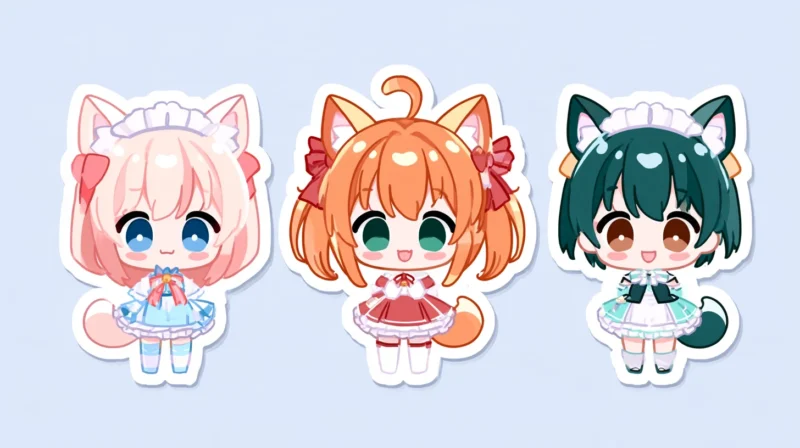
Make the outline obvious. Try thick clean outline or sticker style, thick white border for that familiar die-cut look. The white border also separates the character from the chat background, making stray color around the hair less noticeable.
Generate against a plain, solid background. Writing transparent background in the prompt won’t create a transparent file. In PixAI’s test, adding those words to a Tsubaki.3 prompt produced a flat white background with no transparency data. Some models even paint a fake checkerboard. You’ll need to remove the background separately.
Choose the background color carefully. The original background color can bleed into the outline after removal. In PixAI’s white-versus-dark-gray test, both cutouts were placed on a dark background. Only the white version showed a clear white edge around the hair tips. For white-bordered stickers, a solid mid-tone color that contrasts with both the character and border gives the remover a clearer boundary.
Here’s a starting prompt:
chibi girl with short silver hair and a yellow raincoat, grinning, thumbs up, small sparkle beside her, sticker style, thick white border, clean lineart, flat colors, plain solid mid-gray background
Keeping the Same Character Across the Set
A sticker set quickly feels inconsistent when the character’s hair color or outfit changes between images. Three methods can help keep the design steady.
- A reference image. Start with one sticker you like, use it as the reference for the others, and change only the expression and gesture.
- A character LoRA. This makes sense if you’ll be producing stickers, emotes, and other art of the same character for months.
- A sticker sheet. Generate several expressions of the character in one image, then crop them apart. Because they’re generated together, consistency is usually strong. The trade-off is fewer pixels per sticker, so inspect small details after cropping.
From Generated Image to Transparent PNG
- Remove the background. Put each sticker through a background remover.
- Confirm the transparency. White and transparent backgrounds can look identical in previews. Put the file on a dark color. If you see a white rectangle, the background is still there.
- Inspect the edges. Check the sticker on black, white, and mid-gray backgrounds at 200% zoom. Focus on hair tips, the inside of loops such as ribbons, and gaps around small accessories.
- Clean up halos. In Photopea or Photoshop, Defringe replaces leftover background color along an edge with color from inside the subject. In Photoshop, find it under Layer → Matting; in Photopea, it’s directly in the Layer menu.
- Crop and resize last. Work large while designing and cleaning up, then crop and scale down to each platform’s required size.
Size Specs for Common Platforms
| Platform | Image size | Format and notes |
|---|---|---|
| LINE stickers | Up to 370×320 px per sticker; 240×240 main image; 96×74 chat tab icon | PNG with transparent background, even-numbered width and height, about 10 px margin, 1 MB per file; sets of 8, 16, 24, 32 or 40 |
| Twitch emotes | 112×112, 56×56 and 28×28 px | PNG with transparency; uploading custom emotes requires Affiliate or Partner status |
| Discord custom emoji | 128×128 px is the usual export size | 256 KB limit |
| Discord server stickers | 320×320 px | PNG, APNG or Lottie, 512 KB limit |
| Telegram stickers | 512 px on the longest side | PNG or WEBP |
Platform limits change, so confirm them on the upload screen before exporting a full set. Check each sticker at its smallest display size, too. If the expression disappears at 28 pixels, simplify the design instead of trying to sharpen it.
Before You Share or Sell
Original characters are the simplest case. Existing anime and game characters count as fan art, and marketplaces treat them accordingly: LINE’s review guidelines only let creators sell content they have the rights to. Before selling a set, check for marketplace rules or disclosure fields covering AI-assisted work, and read your generator’s terms.
Where PixAI Fits
PixAI focuses on anime art, so chibi proportions and clean linework are a natural fit. Its default model, Tsubaki.3, accepts full-sentence prompts, making the expression-and-gesture descriptions easy to use. Smart Reference accepts up to three images from generation history, while community or self-trained character LoRAs can support longer-running characters.
You can also remove backgrounds there. In Enhance, select Background Remover under Preset; each run costs 1,000 credits. Enhance opens on Handfix, which shows 2,000 credits, so change the preset before proceeding. Use the Download button in the task detail view for a transparent PNG. Right-click saving produces a WebP instead. The preview displays transparent areas as white, so check the downloaded file against a dark background. PixAI’s guide to making a background transparent and fixing white edges covers the edge fixes in more detail, and its overview of character consistency methods helps if your character keeps drifting across the set.
A Quick Sticker Checklist
- Eight reactions you actually use, written as expression + gesture + prop
- Chibi proportions, one prop, thick outline, plain solid background
- One locked character, held steady with a reference or LoRA
- Transparency confirmed on a dark background, edges checked on black, white and gray
- Exported at each platform’s size and checked at its smallest display size
Try three stickers before making all eight. Generate them on PixAI, remove the backgrounds, and use them in your own chat. Once they read clearly in light and dark mode, you can build out the set.